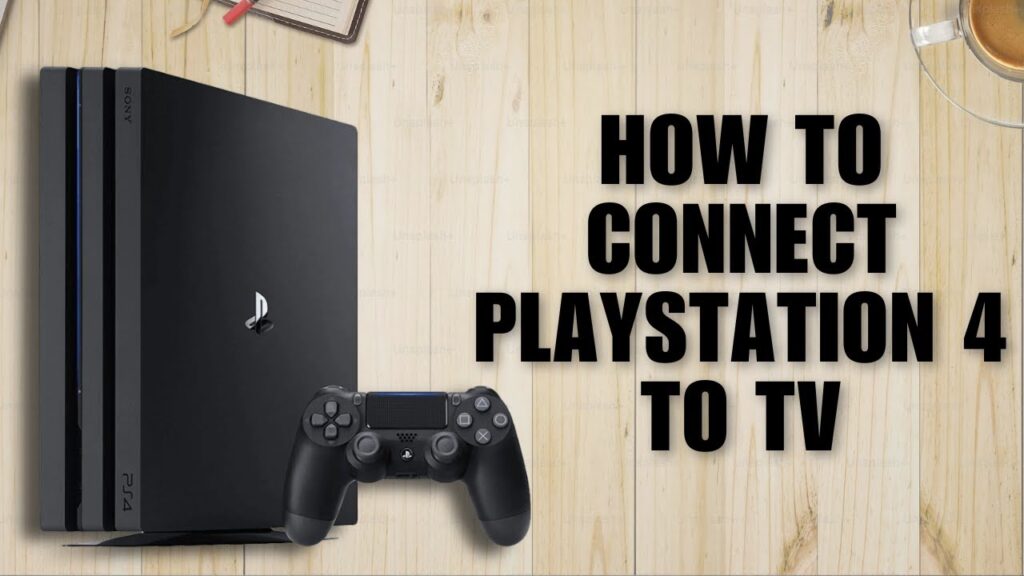
If you’re eager to start gaming on your PlayStation 4 (PS4) but aren’t sure how to connect it to your TV, don’t worry! The process is quick and simple. Whether you’re setting up your console for the first time or trying to troubleshoot a connection issue, this step-by-step guide will walk you through everything you need to know to connect your PS4 to a TV.
What You’ll Need
Before you begin, make sure you have the following items:
- PS4 console
- HDMI cable (usually included in the PS4 box)
- TV with an available HDMI port
- Power cable for the PS4
- Controller (to set up and navigate your PS4)
Once you’ve gathered these items, you’re ready to get started.
Step 1: Power Off Your TV and PS4
Before making any connections, it’s always a good idea to turn off your TV and PS4. This helps avoid any accidental damage to your devices. Unplugging them while setting up is also a good safety measure.
Step 2: Connect the HDMI Cable to the PS4
The PS4 uses an HDMI cable to transmit both video and audio signals to your TV. Here’s how to do it:
- Take one end of the HDMI cable and plug it into the HDMI OUT port on the back of your PS4.
- Make sure the cable is securely connected, so there’s no loose connection.
Step 3: Connect the HDMI Cable to Your TV
- Take the other end of the HDMI cable and plug it into any available HDMI port on your TV. Most modern TVs have multiple HDMI ports, usually labeled as HDMI 1, HDMI 2, etc.
- If you’re unsure which HDMI port to choose, make a note of the one you’re using (for example, HDMI 1), as you’ll need to select it on the TV later.
Step 4: Plug in the Power Cable to the PS4
- Now, connect the power cable to the Power port on the back of the PS4.
- Plug the other end of the power cable into a wall outlet or power strip.
Step 5: Turn on the TV and PS4
- Power on your TV using the remote control or the power button on the TV itself.
- Press the power button on the PS4 console to turn it on. You should see the PS4 logo appear on the TV screen if everything is connected correctly.
Step 6: Select the Correct HDMI Input on Your TV
To ensure your TV displays the PS4’s output, you need to select the correct HDMI input. Follow these steps:
- Using your TV remote, press the Input or Source button.
- Scroll through the list of available inputs until you find the one corresponding to the HDMI port you connected the PS4 to (e.g., HDMI 1, HDMI 2, etc.).
- Select the correct HDMI input, and you should see the PS4 home screen appear on your TV.
Step 7: Set Up Your PS4
Once you’ve successfully connected your PS4 to the TV, you’ll be guided through an initial setup process (if you haven’t done so already):
- Language Selection: Choose your preferred language.
- Internet Connection: Set up your Wi-Fi or wired internet connection if you plan to access online features.
- User Account: Sign in to your PlayStation Network (PSN) account or create a new one.
- System Updates: If necessary, download and install the latest PS4 system software.
Step 8: Test the Connection
Once your PS4 is set up, you can test the connection by navigating through the menus, opening a game, or playing a video to make sure both the video and audio are working correctly.
If you don’t see anything on the TV screen, double-check that the HDMI cable is securely connected to both your PS4 and TV. Also, make sure your TV is set to the correct HDMI input.
Troubleshooting Tips
If you’re having trouble with the connection, here are a few common issues and solutions:
- No Signal on TV: Double-check that the HDMI cable is securely plugged into both the PS4 and the TV. Ensure that you’ve selected the correct HDMI input on your TV.
- No Sound: Make sure the volume on both your TV and PS4 is turned up. Check that the audio output settings on the PS4 are configured correctly.
- Resolution Problems: If the image on the TV looks stretched or unclear, try adjusting the display settings on your PS4. You can change the resolution by going to Settings > Sound and Screen > Video Output Settings.
Conclusion
Now that you know how to connect your PS4 to a TV, you’re ready to enjoy your gaming experience! Whether you’re playing solo, teaming up with friends, or just relaxing with a movie, connecting your PS4 to the TV is a straightforward process that will let you dive into all the features your console has to offer. With this guide, you’ll be up and running in no time.